

User guide Pen and tools
Pen, highlighter and other tools
The same tools work on the Notes whiteboard and on your slides. This chapter covers each one. Phones have a smaller set, covered in PolyNotes on your phone.
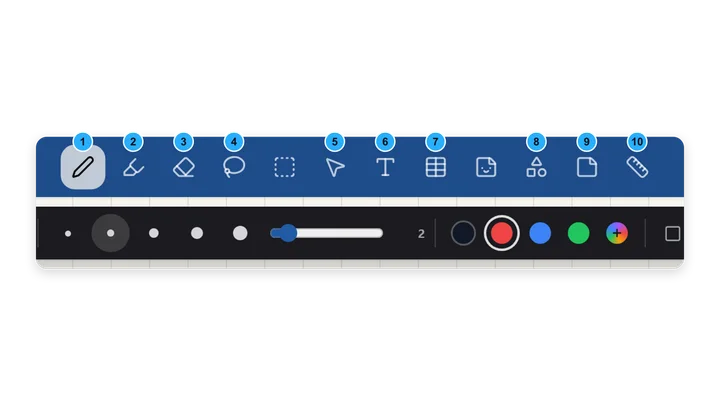
Which tool works where
| Tool | Notes whiteboard | Slides, Canvas view | Slides, Page view |
|---|---|---|---|
| Mouse | Yes | Yes | Yes |
| Pen, highlighter, eraser | Yes | Yes | Yes |
| Lasso | Yes | Yes | No |
| Text and table | Yes | Yes | No |
| Ruler | Yes | Yes | No |
| Shapes, sticky notes, paper | Yes | No | No |
The toolbar
- The top row holds the tools. The row underneath shows the options for the tool you picked, such as colours and sizes.
- On Notes the top row is blue. On slides it's a compact dark bar.
- When the window gets narrow, undo and redo move to a small floating bar, and tools fold one by one into More tools.
Mouse
The neutral tool. Use it to select pictures and boxes, move around the page, and tap things without drawing on them. Switching to another tool clears the selection.
Pen
Three pen styles
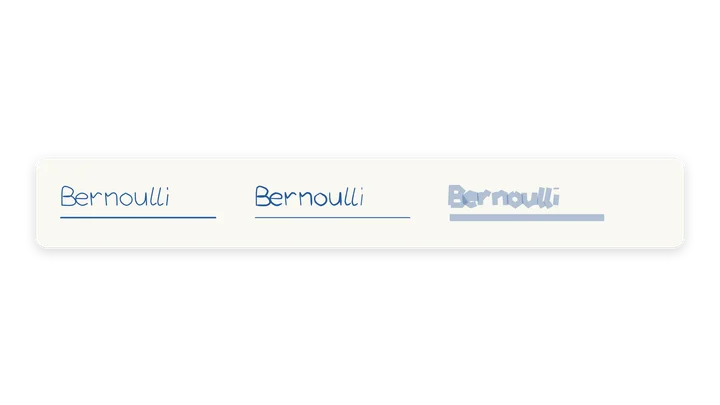
- Smooth is the default. It works like a fountain pen: the line gets thicker as you press harder with Apple Pencil, and tapers at each end.
- Normal keeps the same width however hard you press, like a ballpoint.
- Tape draws a wide see-through band with square ends, like washi tape. It's good for covering an answer so you can test yourself.
Your choice is remembered, and it's the same on Notes and on slides.
Width and colour
- Pick a width of 1, 2, 4, 6 or 8, or use the slider for anything from 0.5 to 16.
- Colours: black, red, amber, green, blue, purple, pink and white. Smaller toolbars show four: black, red, blue and green.
- Tap the colour picker to mix your own. Your last 8 custom colours are saved, newest first.
Pen prediction
PolyNotes draws a short line ahead of the Pencil tip, so the ink keeps up with your hand. It's only on screen and is never saved. It's on by default. Turn it off in Settings → Pen.
Highlighter
See-through ink in amber, green, blue or pink, with the same width slider and custom colours as the pen.
Eraser
- Whole stroke removes any stroke it touches.
- Partial removes only the part under the eraser, so one stroke can become two.
- Sizes 12, 24, 40 and 64, or the slider from 6 to 96. A ring shows the eraser's size as you work.
Shapes Notes
Pick a shape and drag to draw it: line, rectangle, ellipse, triangle, straight arrow or curved arrow.
Draw and hold for a perfect shape
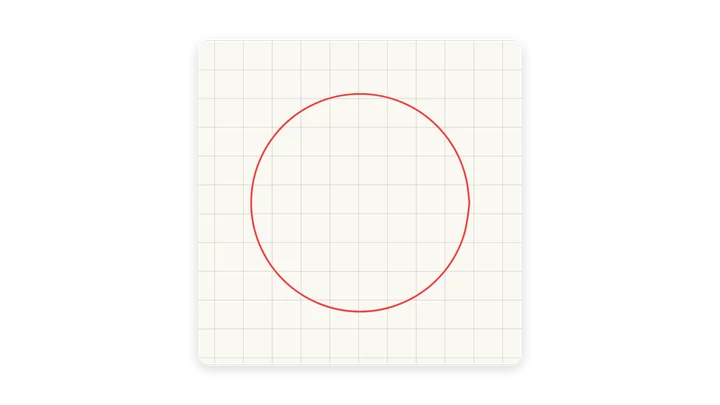
This works on Notes and on slides. Draw a shape with the pen and keep the tip still for a moment without lifting. It snaps to a clean line, rectangle, ellipse, triangle, polygon of four to six sides, or arrow, and shows a preview first. If it isn't clearly one shape, your ink stays as you drew it.
Sticky notes Notes
Paper notes in yellow, red, green, blue or purple. See Sticky notes for editing.
Ruler Notes · Canvas view
- One button shows or hides a ruler on the page.
- Drag it to move it. Drag near either end to turn it.
- Start a stroke close to its edge and the line runs perfectly straight along it.
Paper Notes
Choose Blank, Grid, Lined or Dots. The paper moves and zooms with the page, always sits under your work, and is remembered.
Undo, redo and clear
- On Notes and in Canvas view, undo and redo cover ink, pictures and boxes together. Moving a mixed selection is one step.
- In Page view, undo and redo cover ink.
- Clear sheet on Notes, Clear deck on slides and Clear page in Page view remove everything. Each one asks first when it can't be undone.
Shortcuts are in Shortcuts and gestures.
Pencil, finger and mouse
- Pencil-only drawing is on by default: the Pencil draws, and a finger moves the page. Two fingers pinch to zoom with any tool.
- To draw with your finger, turn off Pencil-only drawing in Settings → Interface. The Mouse tool then moves the page.
- On Windows, a mouse always draws when a drawing tool is picked.
- PolyNotes uses every point the Pencil reports, and smooths fast strokes so curves stay round.
Something wrong or missing on this page? Email support@polynotes.me.