

User guide Plans and AI actions
Plans and AI actions
PolyNotes has three plans: Free, Essential and Pro. Writing, slides, the timetable and recording are in every plan. Plans differ in AI actions, modules, and a few study tools. For prices, see Pricing.
What each plan adds
| Free | Essential | Pro | |
|---|---|---|---|
| Handwriting, whiteboards, PDF markup, recording | Yes | Yes | Yes |
| Timetable, deadlines, courses, CV | Yes | Yes | Yes |
| AI tutor and maths help | Yes | Yes | Yes |
| Modules | 1 | Unlimited | Unlimited |
| Moodle sync | 1 module | Every course | Every course |
| AI actions | A few each month | More | The most |
| Learn: AI summaries, flashcards and quizzes | Yes | ||
| Plot the equations you write | Yes | ||
| AI degree roadmap | Yes | ||
| Offline AI on Windows | Yes |
The exact number of AI actions in each plan is on the Pricing page. New accounts get a bonus in their first month. Transcribing voice notes on Windows is free on every plan.
How AI actions work
- One question or request is one AI action. So is building a study set, plotting an equation or building a roadmap. PolyNotes tells you before the bigger ones.
- A request that fails before any answer arrives isn't counted.
- Monthly plans reset each month. Yearly plans get the whole year's actions at the start.
- See how many are left in Settings, or on the meter at the top of the Concierge panel.
Choose or change a plan
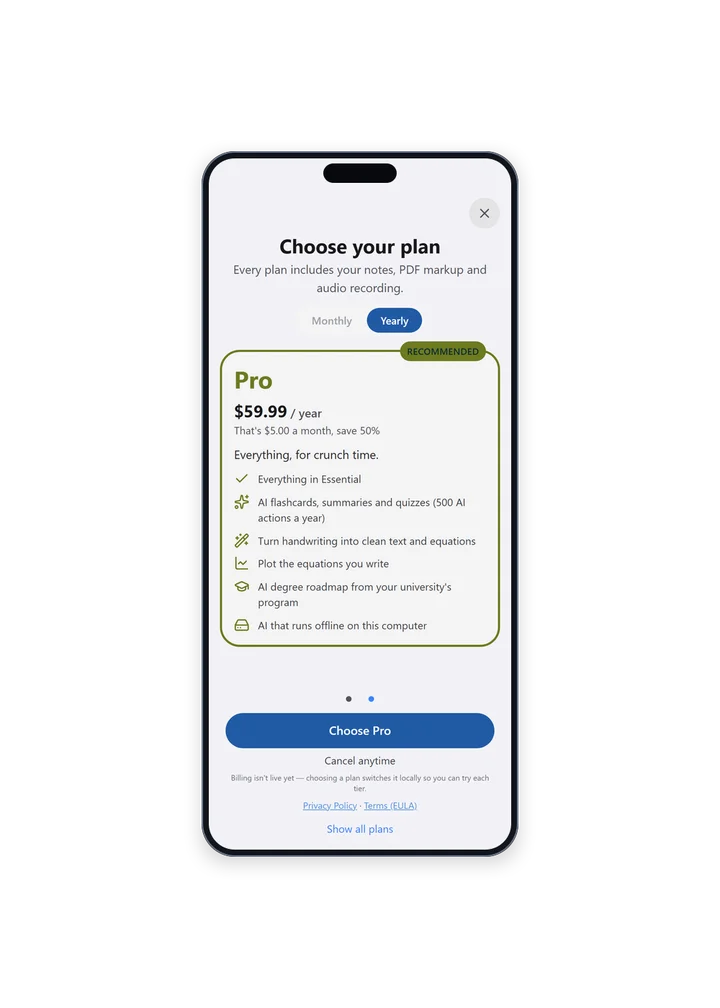
- Open the plan sheet from Settings with See Plans or Change Plan, or from Upgrade anywhere in the app.
- Switch between Monthly and Yearly. Yearly shows the price per month and how much you save.
- Swipe between plans. Show all plans lists them all, including Free.
- Tap the button under the plan you want.
Your current plan is marked. You can switch the same plan from monthly to yearly. After buying, What you unlocked shows what's new, with Start studying.
Where to pay
| Device | How |
|---|---|
| iPad and iPhone | An in-app purchase through Apple. Apple's purchase sheet shows the price in your currency |
| Windows | Subscribe on iPad or iPhone, then sign in with the same account on Windows. Card payment in the browser is coming |
| Android | Subscriptions aren't in the Android app yet. If you already have a plan, sign in with the same account |
A plan belongs to your account, not the device. It works on every device you sign in to the same way.
Restore a purchase
On iPad or iPhone, if you've subscribed but your plan looks wrong, open the plan sheet and tap Restore Purchases at the bottom. On iPhone it's also in Settings → Troubleshooting. Make sure you're signed in with the account you subscribed with.
Cancel or manage
- Plans bought on iPad or iPhone are managed in your App Store account: on your device, open Settings, tap your name, then Subscriptions.
- You keep your plan until the end of the period you paid for.
- Cancelling never deletes your notes. Everything you made stays, and Free features keep working.
Something wrong or missing on this page? Email support@polynotes.me.