

User guide AI and the Concierge
PolyNotes AI and the Concierge
PolyNotes AI answers questions from your own course material, and the Concierge looks after your student admin: your timetable, courses, profile and CV.
Where the AI is
| Chat | Where | What it's for |
|---|---|---|
| Concierge | The panel on the right of the full app, and the AI tab on phones with no module chosen | Your timetable, courses, profile, deadlines and CV |
| Module tutor | Inside a module, and the AI tab on phones with a module chosen | Answers from that module's slides and notes |
| Notes chat | Beside the Notes whiteboard | Your handwriting, photos, files, maths and quizzes |
The tutor and Notes chat are covered in Study with AI.
Before you start
- The AI needs an account. As a guest, tapping it takes you to sign-in.
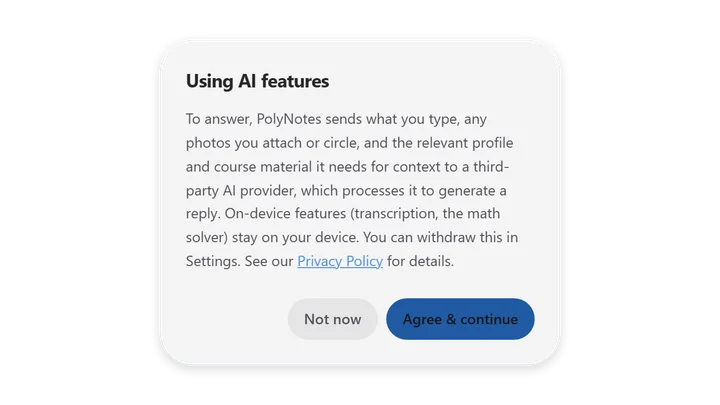
- The first time you ask something, PolyNotes explains what it sends: what you type, any photos you attach or circle, and the profile and course material it needs to answer. These go to a third-party AI provider. Tap Agree & continue, or Not now.
- On Windows you can turn the AI off again in Settings → Privacy & legal → AI features.
The AI is a study aid and can make mistakes. Check anything important against your slides, and follow your university's rules on AI use.
AI actions
- Each question or request uses one AI action. How many you get depends on your plan. See Pricing.
- If a request fails before any answer arrives, it isn't counted. One that answered partly is counted.
- Monthly plans reset each month. A yearly plan gets the whole year's actions at the start.
- When you run out, the chat says “You've used all your AI actions this month.” and the plan sheet opens.
- There's also a limit of 60 per hour. Past it you'll see “That's a lot of questions in an hour. Try again shortly.”
- Settings shows how many you have left. The Concierge panel shows it too, with an Upgrade button.
Chatting
- Answers appear as they're written. They can include headings, tables, lists, code and typeset maths.
- Copy message sits under every answer.
- Regenerate reply asks again for the last answer, in the tutor and Notes chat.
- Enter sends and Shift+Enter starts a new line. You can turn off Enter to send in Settings → Interface.
- On phones, the send button becomes Stop while an answer is coming.
Attach photos and files
- Tap + for Take Photo, Photos or Files.
- Attach up to 3 photos per message. The AI reads handwriting, worked problems and diagrams.
- Files can be PDF, text, Markdown or CSV.
- Attachments show as chips above the message box. Tap one's × to remove it.
- Send a photo with no question and PolyNotes asks for help with it. Send a file with no question and it asks for a summary.
Talk instead of typing
Tap the microphone to start and stop, or hold it while you talk.
| Device | How dictation works |
|---|---|
| iPad, iPhone | Apple's speech recognition |
| Windows | Windows speech recognition. Turn on Online speech recognition in Windows Settings, under Privacy, Speech |
| Android | Your phone or tablet's speech recognition |
If the device's own recognition can't start on Windows or Android, PolyNotes transcribes the clip itself, up to 10 minutes a month. Past that it says “You've used this month's 10 minutes of dictation.” Dictation is off on phones while a lecture is recording, because the microphone is in use.
Past chats
Every chat is saved and named after its first message. Open the history to go back to one, or delete it. The Concierge, each module's tutor, the Notes chat and the phone keep separate histories.
Online or Local Windows
The UniAI pill in each chat switches between Online and Local. Local runs an AI model on your PC, with no internet Pro. Choosing Local the first time offers the download, about 5 GB. It downloads in the background and picks up where it left off if interrupted. You can also download it in Settings → Downloads.
The Concierge
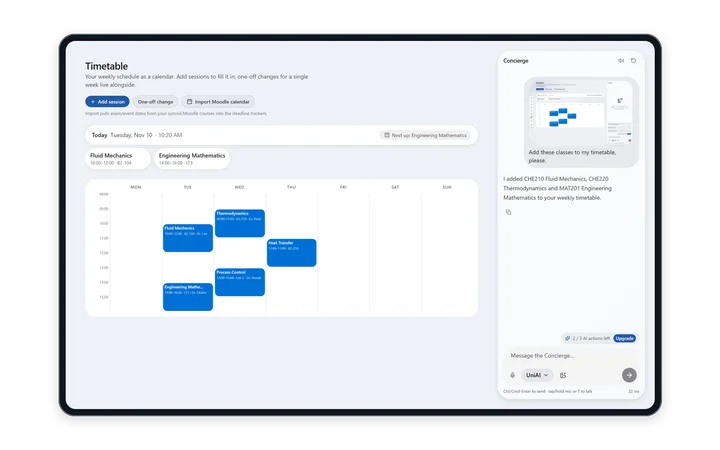
The Concierge knows today's date, your profile, your courses, your weekly classes, your deadlines and your Quick Notes. It reads them fresh for every message.
What you can ask it to do
| Ask | For example | What happens |
|---|---|---|
| A question about your week | “How many classes do I have on Monday?” | It counts them from your timetable |
| Add a class | “Add CHE210 on Monday at 10am in room B2” | It's added to your timetable and courses |
| Add a whole timetable | Send a screenshot of your timetable | Every class block is added, with day, times, room and lecturer |
| Remove a class | “Remove CHE210” | Matching classes are removed |
| Add courses | “Add Thermodynamics and Fluid Mechanics to year 2 semester 1” | They're added to Courses, with code, type and credits if you give them |
| Update your profile | “Set my major to Chemical Engineering” | Your name, major, year or advisor is saved |
| Remember something | “Remind me to review chapter 3” | It's added to Quick Notes on Home |
| Build your CV | “Build my résumé” | Your header and education are filled in from your records |
| Add a CV entry | Describe a job, club or project | A work or leadership entry with strong, measurable bullet points |
| Set your skills | “My skills are MATLAB and Python” | Your Skills & Interests line is set |
- One message can make several changes. The Concierge makes them straight away, then tells you what it did.
- It only acts on clear requests. If something's missing, like a class's time, it asks.
- If something's wrong, change it yourself or ask the Concierge to fix it.
The Concierge panel iPad · Windows · Android tablet
- The meter at the top shows how many AI actions you have left this month, with Upgrade.
- New conversation starts fresh and forgets the earlier messages.
- The speaker button turns Read replies aloud on or off, using your device's voice.
- Hold the T key to talk when you're not typing in a box.
- Ctrl/⌘+Enter always sends.
Suggestions on each page
Under the message box, suggestions change with the page you're on. Tapping one fills in a message for you to edit and send.
| Page | Suggestions |
|---|---|
| Home | What's due this week?, Add a deadline, Summarize my day |
| Timetable | Build my timetable, Add a class, Find free slots |
| Courses | Import syllabus PDF, Add core & electives, Calculate credit load, Generate 4-year plan |
| Roadmap | Suggest my next courses, Check graduation progress, Rebalance my semesters |
| Profile | Autofill from offer letter, Sync Moodle profile, Generate academic CV, Build 4-year roadmap |
Some suggestions start a conversation rather than changing anything. Deadlines, for example, are added on Home or synced from Moodle, so the Concierge can talk about them but not add them.
The Concierge on a phone New in 1.1
Open the AI tab and leave the context empty. See The AI tab.
Something wrong or missing on this page? Email support@polynotes.me.