

User guide Modules
Modules and course materials
A module is one subject. It holds that subject's slides, tutorials, announcements, links, photos, recordings and its own AI chat.
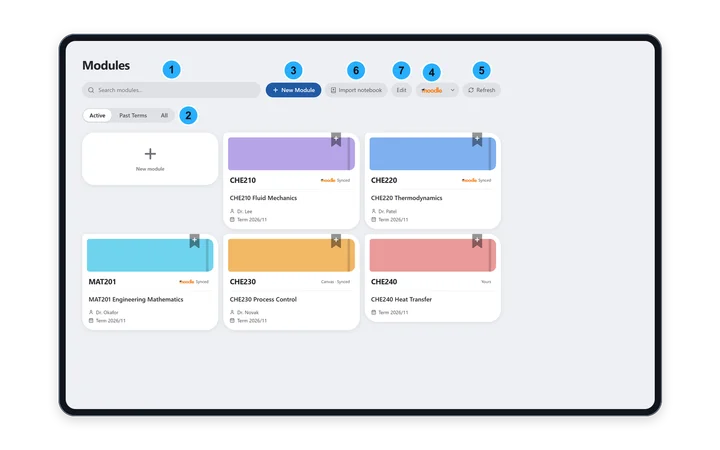
The Modules page
This is where the full app opens iPad · Windows · Android tablet.
- Search modules… finds a module by its code or title.
- Active, Past Terms and All filter by each course's start date. A module with no term counts as Active.
- New Module creates one. See below.
- Sync opens Moodle or Canvas. The small arrow next to it switches between the two.
- Refresh checks your connected courses for new files.
- Import notebook brings a notebook exported from another app in as a new module. It accepts a PDF or a Notability
.zip. - Edit shows Rename and Delete on each card.
Each card is labelled Synced (from Moodle), Canvas · Synced, or Yours (made by hand).
Create a module
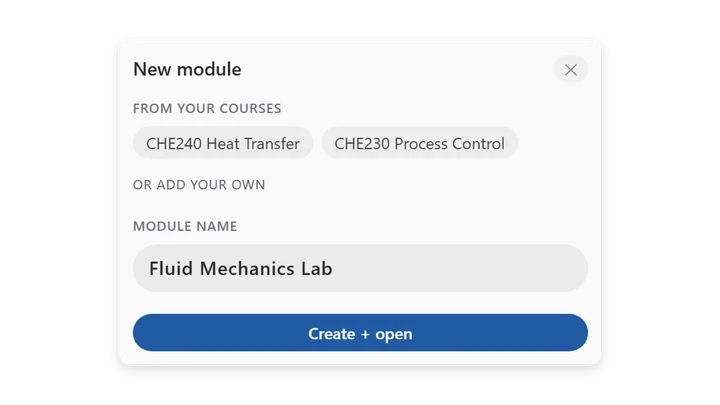
- Tap New Module.
- Under From your courses, tap a course to make a module linked to it. Or, under Or add your own, type a name such as “Fluid Mechanics”.
- Tap Create + open.
The Free plan has one module. Essential and Pro have as many as you like. See Pricing.
Link a module to a course
Linking tells PolyNotes which of your courses a module belongs to, so photos and recordings from that course's classes file into it. Tap the link button on a module card and choose the course. Once set, it reads “Linked to a course. Tap to change”. If you have no courses yet, add them in Courses first. See Courses, Roadmap and Profile.
Rename or delete a module
- Tap Edit, then Rename. Only the title changes, so your slides, notes and AI search keep working.
- Tap Edit, then Delete. PolyNotes asks before deleting.
Inside a module
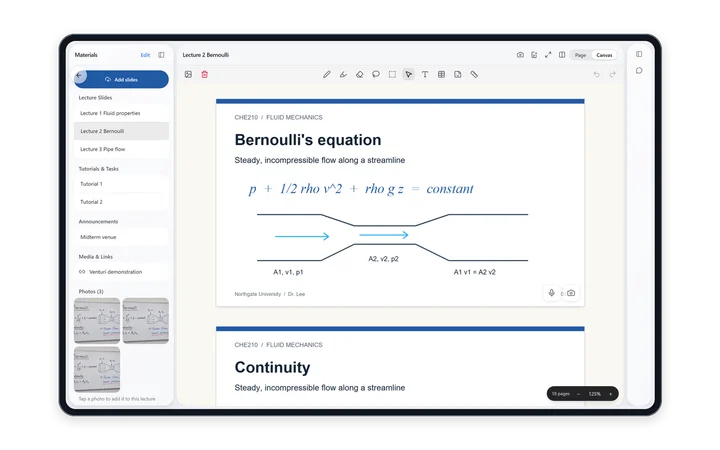
The materials list
- Materials sort into Lecture Slides, Tutorials & Tasks, Announcements and Media & Links, with a gallery of photos and recordings below.
- Fold the list to a thin rail with Collapse, and bring it back with Expand.
- Tap a slide deck to open it. See Lectures and slides.
- Announcements open as readable text. Links open in your browser.
- Word and PowerPoint files open in their own app, because the viewer shows PDFs. The AI still reads their text.
Add your own slides
Tap Add slides and pick one or more PDFs. They're stored on this device and added to the module's AI search.
Remove a file
Tap Edit in Materials to show Delete this slide and Open the original file. Delete asks first.
Photos and recordings from class New in 1.1
Board photos and lecture recordings you take on your phone land in the module's gallery on your iPad, Windows PC or Android tablet. See PolyNotes on your phone.
- Tap a photo to add it to the open lecture. See Add a photo from the module.
- Recordings play right there in the list.
- To delete one, tap Edit first.
Modules on a new device New in 1.1
Modules synced from Moodle reach a new device by name, without their files. PolyNotes offers Download or Not now. Once the files are on the device, your handwritten notes on them appear too.
Modules on a phone New in 1.1
- Open them from the Modules box on Home. Each module has its own colour.
- Sync Moodle and New module sit at the top. Edit shows delete buttons, and tapping a name while editing renames it.
- Inside a module you'll find its slides and Ask about this module, which opens the AI with that module chosen.
- A module with no files says to sync Moodle, or to open it once on your tablet or computer so its slides reach the phone's AI.
Something wrong or missing on this page? Email support@polynotes.me.