

User guide Study with AI
Study with AI
The tutor answers from your own slides and shows you where each answer came from. Learn turns a lecture into a summary and flashcards.
The module tutor
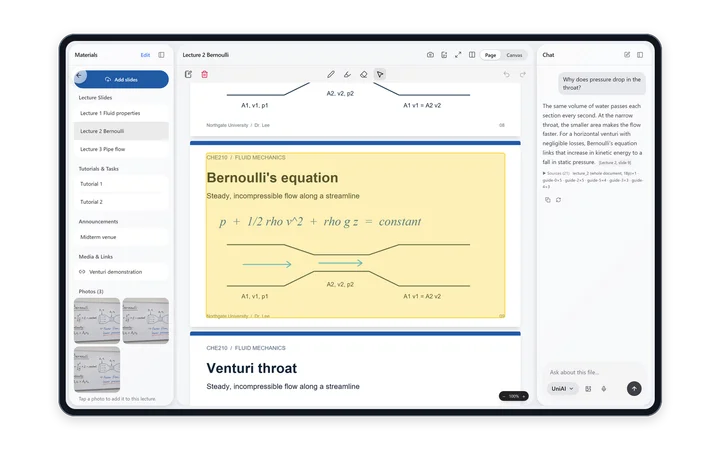
Each module has one tutor chat, shared by all its lectures iPad · Windows · Android tablet.
- Open it from the lecture's toolbar with Ask the tutor. It opens as a side chat you can shrink to a small box, expand, resize and drag around.
- Suggestions to start: Summarize this lecture Pro, Extract constants, Generate Quiz Pro, Generate title and Generate lecture Pro.
- You can dictate and attach photos and files, as in any chat. See Chatting.
Where answers come from
- The first time you open the tutor, it reads every PDF in the module. That takes a moment once, then it's ready until the materials change.
- It also reads Word and PowerPoint files, Moodle pages and announcements, and voice note transcripts.
- Answers name their source, such as Lecture 2, slide 9. Tap the source to open that material at that page, with the passage highlighted.
Ask good questions
- Name the example. “Solve Example 3” or “Explain Question 6” finds that exact example, and the page before it, so the formula it relies on comes along too.
- Say what you want. “Solve” questions lean on worked examples. “Explain” questions lean on definitions.
- Ask about a whole sheet. “Go through tutorial 4” sends the whole tutorial, so no question gets skipped.
The Notes chat
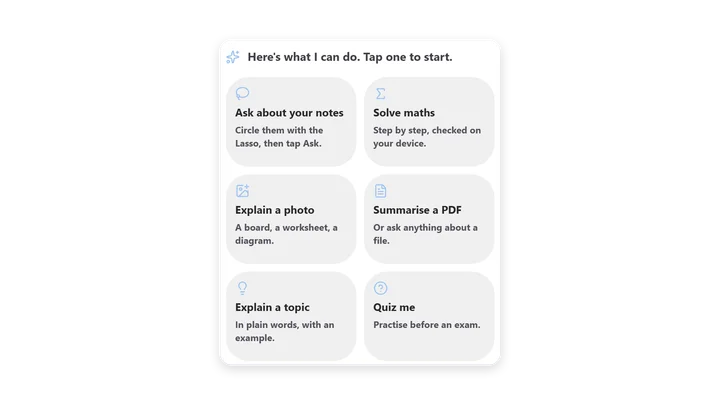
A chat beside the Notes whiteboard, for anything on your boards iPad · Windows · Android tablet. It starts with six cards:
- Ask about your notes: circle them with the lasso, then tap Ask.
- Solve maths: step by step.
- Explain a photo.
- Summarise a PDF, or ask anything about a file.
- Explain a topic in plain words, with an example.
- Quiz me, to practise before an exam.
Chat history, Start a new chat, Delete conversation and Close chat are at the top. Dock it to the side, or drag it out to float.
Learn: summaries and flashcards Pro
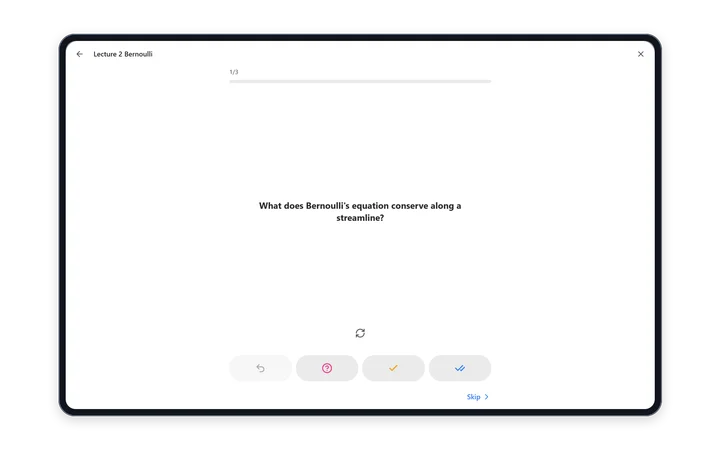
- Open a lecture and tap Learn. In the full app it's under Flashcards & Summary in the … menu.
- PolyNotes tells you this uses one AI action, then shows “Preparing your study set” while it builds.
- Read the Summary, or go through the Flashcards.
- For each card, tap Knew it, Didn't know it or Skip. Previous card goes back.
- At the end it says “You've been through them all”. Tap Study Again to go round once more.
- The study set is saved, so opening it again never uses another action.
- For a very long lecture it says the summary and cards cover the first part of it.
- If building fails, tap Try Again.
Graph a handwritten equation Pro
Write an equation, circle it with the lasso and tap Plot. PolyNotes reads your handwriting and adds a live graph with a slider for each constant. See Graphs.
Transcribe voice notes Windows
- Tap Transcribe on a voice note, on a slide or on the Notes whiteboard.
- It runs on your PC and is free on every plan. The first time, it downloads a speech model of about 600 MB.
- It works in the background, so you can keep using the app.
- The transcript joins the module's AI search, so the tutor can answer from what was said.
Transcription isn't available on iPad, iPhone or Android yet, so the button doesn't appear there.
Ask the AI on a phone New in 1.1
The phone's AI tab can use any module as context, or you can ask inside a lecture. See The AI tab.
Something wrong or missing on this page? Email support@polynotes.me.