

User guide Notes whiteboard
The Notes whiteboard
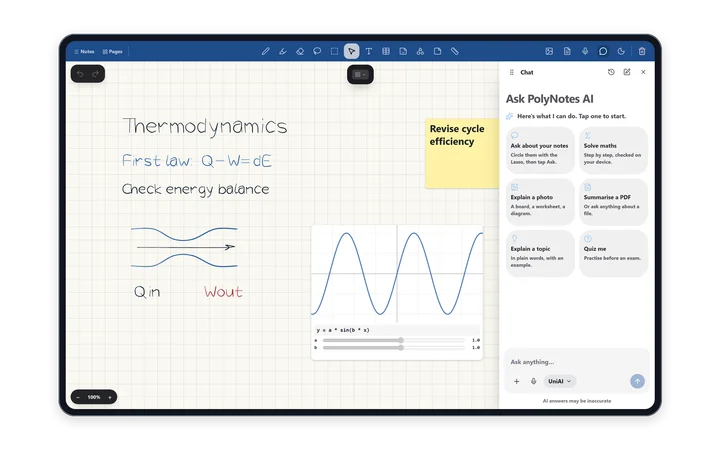
Notes is a tab of blank whiteboards for anything that isn't tied to one slide deck: revision sheets, worked problems, mind maps.
Your notes
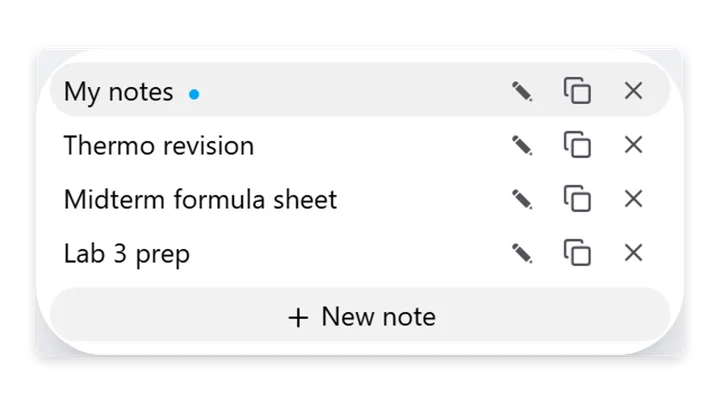
- Notes opens the list of your notes. Open, rename, duplicate or delete one, or tap New note.
- Pages shows a small preview of every note. Previews show ink only, not pictures.
- Each note is its own sheet. The first one is called “My notes”, and the last one you opened opens next time.
A sheet that grows
- Each sheet starts large and grows as you move towards an edge, up to four times as wide and tall. Your work stays where you put it.
- Zoom from 40% to 300% with the buttons, the keyboard, Ctrl/⌘ with the scroll wheel, or a pinch. Tap the zoom number to go back to 100%.
- The Sun/Moon button on the toolbar switches the board between light and dark, separately from the rest of the app.
- Right-click or long-press the sheet for Paste here and Add text or table here.
- The sheet runs under the side rail, and you can write there too.
Bring things in
- Add PDF places a PDF's pages on the sheet as cards you can drag around, in a grid three cards tall.
- A Notability
.zipbrings in its pages as cards, and its recordings as audio players on the sheet. - Add image adds a picture. See Pictures.
To bring a whole notebook from another app in as a module instead, use Import notebook on Modules.
Tools
Every tool works here: pens, shapes, sticky notes, the ruler, paper styles, the lasso and Elements. See Pen and tools and Lasso, boxes and pictures.
Voice notes on Notes
- Tap the microphone on the toolbar. A recording display appears.
- Tap Stop.
- The clip lands on the sheet as an audio player with Play, Stop, Transcribe (on Windows), Hide transcript and Delete.
The Notes chat
An AI chat sits beside the whiteboard. It's docked at the side to start with. Drag it out to float it, and use the dock button to put it back. See The Notes chat.
Notes whiteboards stay on this device. They don't sync to your other devices. Your notes on lecture slides do. See Sync across your devices.
Something wrong or missing on this page? Email support@polynotes.me.