

User guide Moodle and Canvas
Connect Moodle or Canvas
Connect your university's Moodle or Canvas once, and PolyNotes brings in your courses, slides, announcements, links and deadlines. Your device talks to your university directly, and your university password never reaches PolyNotes.
Connect Moodle
- On Modules, tap Sync and choose Moodle. On a phone, tap Sync Moodle in Modules.
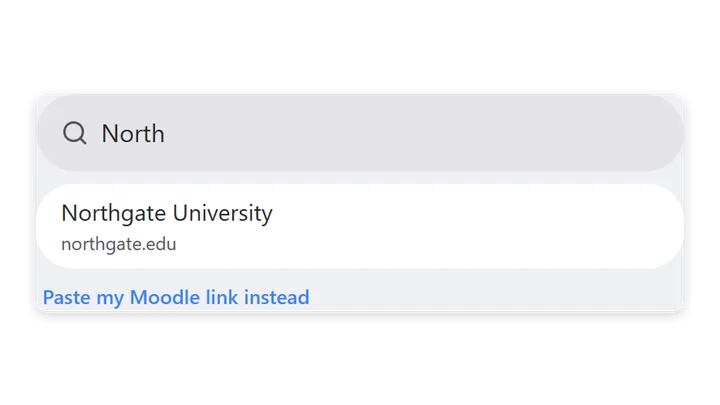
- Under Find your university, type your university's name and pick it New in 1.1. PolyNotes finds its Moodle site. If it can't, tap Paste my Moodle link instead and enter the address you use in a browser.
- Sign in on your university's own page. It opens in your browser, then returns you to PolyNotes.
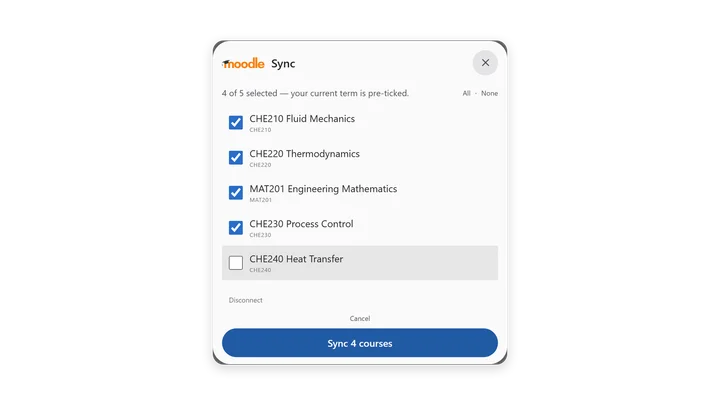
- Choose the courses to sync. Courses from your current intake are ticked already. All and None help with long lists.
- Start the sync. A summary shows what came in.
On the Free plan you choose one module to sync. Essential and Pro sync every course. See Pricing.
What Moodle brings in
| In Moodle | In PolyNotes |
|---|---|
| Files and folders | PDFs become slides you can write on. Word, PowerPoint and text files are read by the AI |
| Pages, section text, forums and announcements | Readable announcements, also used by the AI |
| Web links | Media & Links |
| Assignments and quizzes | Deadlines on Home, with their due dates |
| Calendar events | Deadlines, when you use Import Moodle calendar on the Timetable |
Lectures sort themselves into Lecture Slides and Tutorials & Tasks. The summary lists Files added, Word and PowerPoint files, Notes for the AI and Media links.
Keep it up to date
- Tap Refresh on Modules to pick up new files. It says “You're up to date” or “Refresh complete”.
- Syncing again is safe. Changed files update, and deadlines update in place, so nothing doubles up.
- If something fails, tap Try again. Cancel stops a sync that's running.
Import your Moodle calendar
Exam and event dates aren't added on their own, because a Moodle calendar doesn't always match what really happens. To add them, open Timetable and tap Import Moodle calendar. If there's nothing new it says “No new dates found in Moodle.” See Timetable.
Disconnect Moodle
Use Disconnect Moodle, or Disconnect & reconnect to sign in again. Your modules and notes stay.
Your Moodle access stays on the device
- The key Moodle gives PolyNotes is kept in your device's secure storage, and never syncs.
- Only your Moodle site's address syncs, so a new device already knows which site to use. You sign in once on each device.
- Moodle files don't sync between devices. Each device downloads them from Moodle, and your handwritten notes follow once the files are there.
Connect Canvas iPad · Windows · Android tablet
- On Modules, tap the arrow next to Sync and choose Canvas.
- Enter your university's Canvas address, such as
canvas.youruniversity.edu. - Enter a Canvas access token. To make one, open Canvas in your browser, go to Account → Settings, and choose New Access Token.
- Pick your courses. PolyNotes imports their files, modules, links and assignment deadlines.
The token is kept in your device's secure storage. Phones don't have a Canvas screen, so connect Canvas on your tablet or computer.
Something wrong or missing on this page? Email support@polynotes.me.