

User guide Lasso, boxes and pictures
Lasso, boxes and pictures
The lasso picks up anything on the page so you can move it, copy it, or ask the AI about it. Text boxes, tables, sticky notes, graphs and 3D shapes are boxes you place on the page.
Select with the lasso
The lasso works on the Notes whiteboard and in Canvas view.
- Freehand: draw a loop around what you want.
- Rectangle: drag a box.
- Picks up: turn Ink, Images, Text and Notes on or off to choose what gets selected. Ink includes pen, highlighter and shapes.
- Strokes inside the loop are selected, and pictures and boxes travel with them. A loop over an empty area works too, for capturing that area.
Move, resize and turn
Drag inside the selection to move it. Drag a corner to resize it. Drag just outside a corner to turn it.
The lasso bar
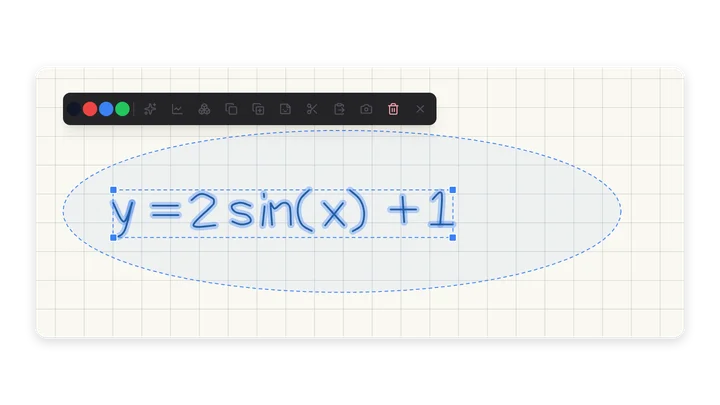
The bar sits above the selection, moves below it when there's no room, and always stays on screen.
| Button | What it does |
|---|---|
| Ask AI about what's circled | Sends the circled area to the chat as a picture. The AI reads handwriting, formulas and diagrams. Uses one AI action |
| Plot | Reads the circled equation and adds a live graph next to it. Pro. Uses one AI action |
| 3D Extrude | Turns the circled shape into a 3D solid you can spin |
| Copy | Copies the selection. Copying part of a picture cuts it to the shape of your loop |
| Duplicate | Places a copy next to it |
| Add to Elements | Saves it to your library to use again |
| Cut | Copies it, then removes it |
| Paste here | Pastes what you copied at the loop |
| Screenshot | Copies a picture of the selection, to paste into another app |
| Delete | Removes the selection |
| Dismiss | Closes the bar |
For ink, four colour dots also appear: tap black, red, blue or green to recolour the selection.
Copy and paste handwriting
Copied handwriting stays real ink, so a pasted copy is sharp and can still be erased or recoloured. Paste with Ctrl/⌘+V, a right-click, a long press, or Paste here.
Elements: your reusable library
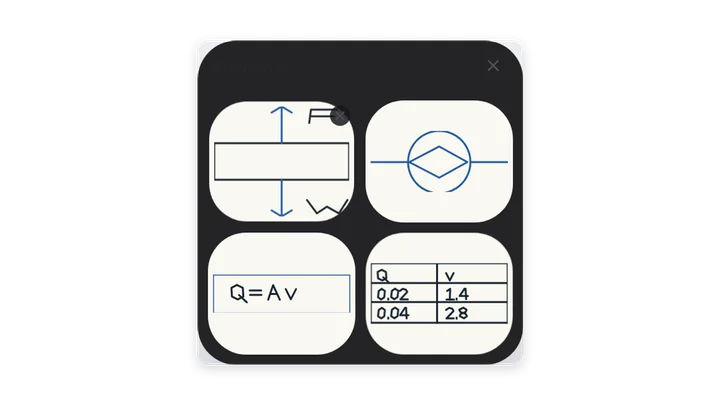
- Select something, then tap Add to Elements. It's kept for good, ready for any note or deck.
- Open Elements from the toolbar to see a preview of each one.
- Tap one to drop a fresh copy on the page. Tap its × to delete it.
Good for diagrams you draw again and again, like a free-body diagram or a reactor sketch.
Boxes on the page
Every box can be moved, resized, copied, duplicated, layered and removed.
Text boxes
- Pick the Text tool and tap where the text should go.
- Fonts: Default, Inter, Poppins, Lora, Roboto Slab, JetBrains Mono and Caveat.
- Smaller and Larger change the size. Bold, Italic, Underline and text colour change the style.
- Drag the left or right edge to make the box wider or narrower.
Tables
Pick the Table tool to place a small grid. Type in any cell, and use Add row and Add column to grow it.
Sticky notes
Square paper notes in five colours on the Notes whiteboard. Resize the note and its text.
Graphs
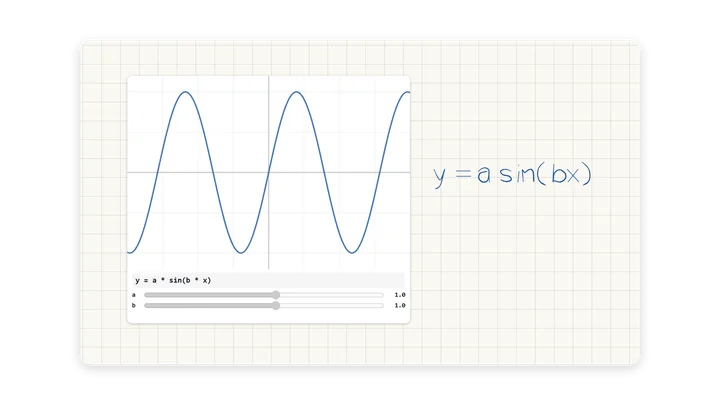
- Lasso a handwritten equation and tap Plot to get a live graph Pro. You can edit the equation on the card.
- Write it the way you would on paper:
y = 4x^2 - 2,f(x) = 2sin(x). - Functions: sin, cos, tan, asin, acos, atan, sinh, cosh, tanh, exp, ln, log, log10, sqrt, cbrt, abs, sign, floor, ceil and round. Constants: pi, e and tau.
- Any extra letter, such as
aorb, gets its own slider, so you can see what each one does. - The graph follows the board's light or dark theme.
3D shapes
- Lasso a shape and tap 3D Extrude. A 3D card appears next to it.
- Choose the solid from the card's shape menu: box, cylinder, prism, cone or sphere.
- Drag to spin it. The Depth slider makes it deeper or shallower, for every solid except the sphere.
Layers
Select a picture or box to bring it forward or send it back: Bring to front, Bring forward, Send backward and Send to back.
Pictures
Add a picture
Use Add image on the toolbar, paste one with Ctrl/⌘+V, use Screenshot to Canvas, or pick one of the module's photos.
Edit a picture
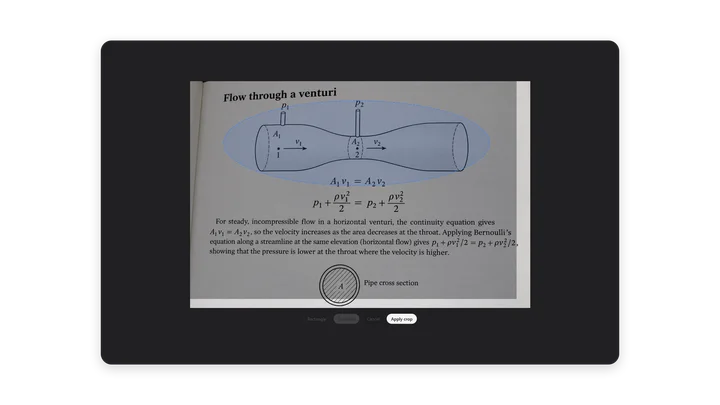
Select it with the Mouse tool, then:
- Drag to move it, drag a corner to resize it, and drag the handle above it to turn it.
- Flip it horizontally or vertically.
- Crop to a rectangle, or to any shape you draw. Tap Apply crop or Cancel.
- Copy (Ctrl/⌘+C), Duplicate (Ctrl/⌘+D) or Remove it.
- Write on top of it with any pen.
Something wrong or missing on this page? Email support@polynotes.me.