

User guide Courses, Roadmap, Profile
Courses, Roadmap and Profile
Courses lists every course in your degree. Roadmap turns it into a path to graduation, with your grades and what to take next. Profile holds the details the AI and your CV use.
Where to find them. On iPad, Windows and Android tablets, turn on Courses, Roadmap and Profile in Settings → Sidebar items to add them to the rail, or open them from Settings. On phones, they're in Settings under Study pages.
Courses
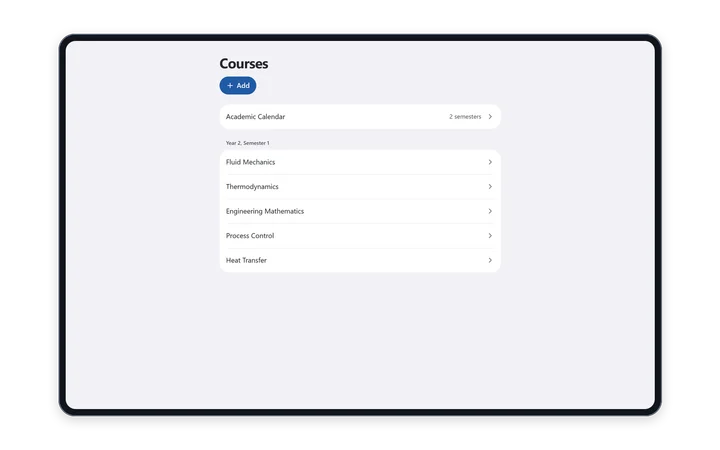
Set up your academic calendar
Enter Semesters a year, Max credits per semester, Total credits to graduate, and the start and end of each semester. GPA uses a 4.0 scale.
Add a course
- Tap Add Course.
- Enter the Name, and the Code and Credits if you know them.
- Choose the Year, Semester and Type: Core, Major elective or Elective.
- Under Take First, pick any courses that must come before it.
- Save.
- Electives without a name yet show as Elective A, B and C.
- Edit Course and Delete Course are on each course.
- Or send PolyNotes AI a screenshot of your timetable or programme, or ask it to “Add core & electives”.
Roadmap
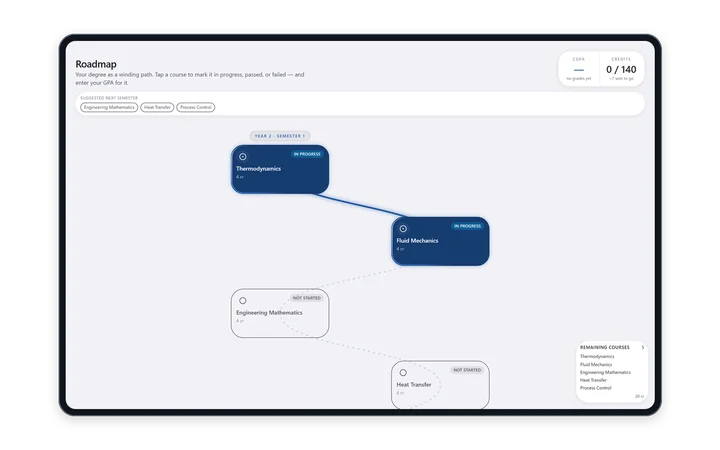
- Your degree is drawn as a winding path down the page, with a label at the start of each semester.
- CGPA and Credits sit at the top.
- Suggested next semester lists retakes first, then courses whose prerequisites you've passed, up to your credit limit.
- Graduation projects a month and year. It needs your total credits and per-semester limit from Courses.
- Remaining courses lists what's left.
Record a result
- Tap a course on the path.
- Choose Pass, Fail, In progress or Reset to not started.
- For Pass or Fail, enter the grade point from 0 to 4.
Marking a course Failed adds a retake to your plan. Undo the fail and the retake goes away.
In the full app, Settings → Sidebar items has switches for the GPA tracker, Graduation projection, Optimal next semester and the Remaining courses box.
Build My Roadmap Pro
- On Profile, fill in your university and major, then tap Build My Roadmap.
- PolyNotes AI lists the usual programme for that major. It works from what it knows, and doesn't browse the web.
- Review your program: untick courses that don't apply, and fix credits, prerequisites, semesters a year, total credits and the per-semester limit.
- Confirm. Nothing is saved until you do.
It uses one AI action, counted only once the result arrives. Check it against your university's official programme.
Profile
| Section | Fields |
|---|---|
| Personal | Name, Student ID, Nationality, Email, Phone |
| Studies | University, Campus, Major, Year, Advisor |
| Housing | Block, Room |
| Status | Local or international |
It saves as you type. The Concierge reads it, and your CV fills from it.
University Password lets you save your university password in the device's secure storage. It never syncs, and the app can't show it back to you. Use Remove Password to delete it.
What syncs
Courses and Profile sync to your other signed-in devices. The academic calendar settings stay on each device. See Sync across your devices.
Something wrong or missing on this page? Email support@polynotes.me.