

User guide Settings and account
Settings, account and privacy
Where to find each setting, how to sign out or delete your account, and what PolyNotes keeps private.
The Account sheet
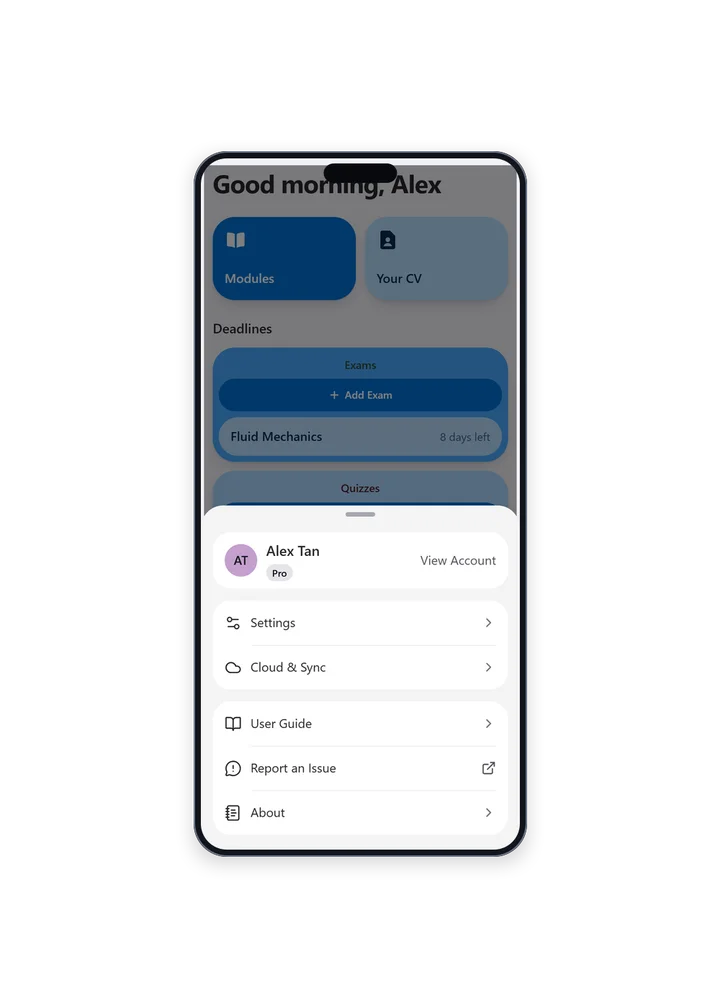
Open it from the Account button at the bottom of the rail, or the round button in the corner on a phone.
- Your name, email, initials and plan, with View Account.
- On the Free plan, a card to upgrade.
- Settings, Cloud & Sync, User Guide, Report an Issue and About.
- Rate on App Store on iPad and iPhone.
- About shows which version you have, with a link to the website.
Your account
- The Account page shows your Name, Email, and what you Signed in with.
- Sign Out signs you out. Nothing is erased: sign in again and it's all there.
- As a guest you'll see Sign In instead. Everything you made as a guest stays.
Delete your account
This can't be undone. Delete Account permanently removes your account, everything stored for it on our servers, and everything it saved on this device, including your notes.
- Open the Account page.
- Tap Delete Account and confirm.
A subscription bought through Apple is billed by Apple, so cancel it in your App Store account as well. See Cancel or manage.
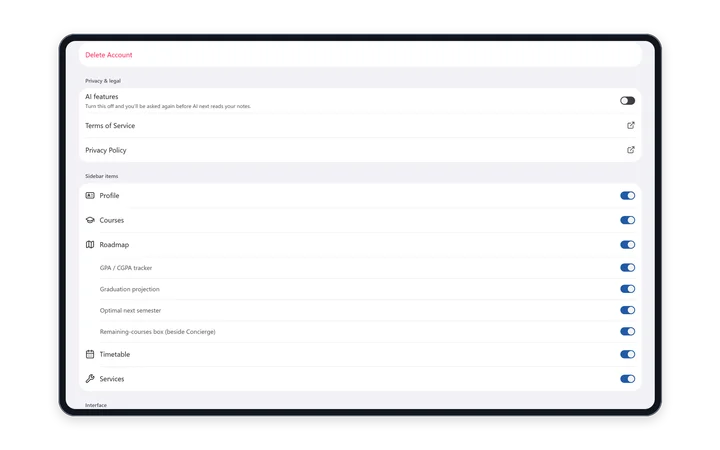
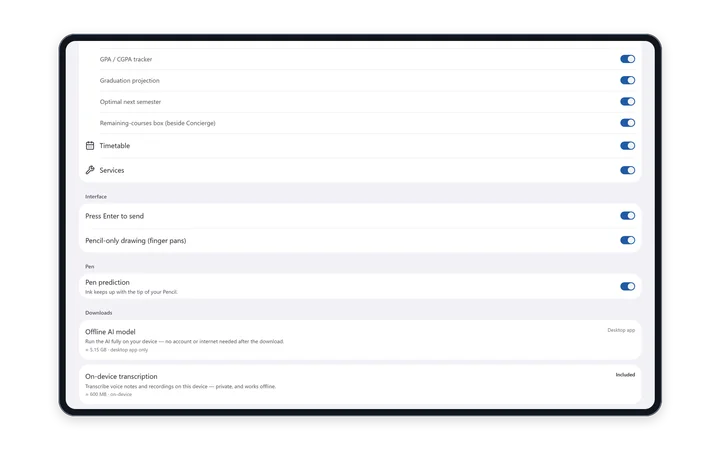
Settings in the full app iPad · Windows · Android tablet
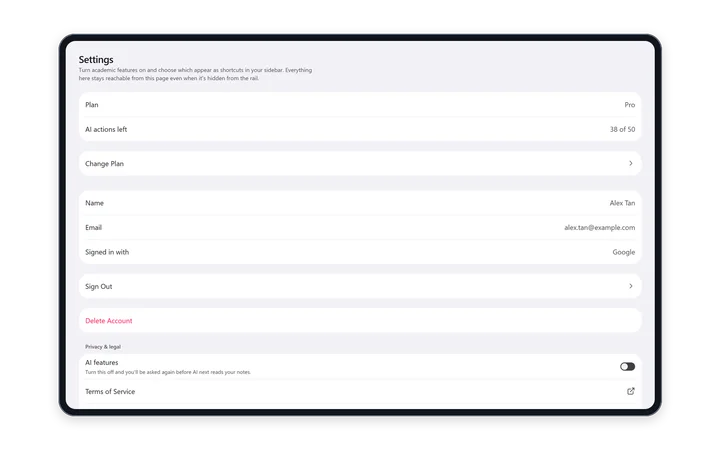
| Section | What's there |
|---|---|
| Subscription | Your plan, AI actions left, and See Plans or Change Plan |
| Account | The account page: sign out and delete account |
| Privacy & legal | The AI features switch on Windows, the Terms of Service and the Privacy Policy |
| Sidebar items | Profile, Courses, Roadmap, Timetable and Services. Tap a row to open it, or switch it on to add it to the rail. Roadmap has its own switches for the GPA tracker, Graduation projection, Optimal next semester and Remaining courses |
| Interface | Press Enter to send, and Pencil-only drawing. Both are on to start with |
| Pen | Pen prediction, on to start with |
| Downloads | The offline AI model on Windows, and the transcription model |
Settings on a phone New in 1.1
| Section | What's there |
|---|---|
| Subscription | Your plan and its options |
| Cloud & Sync | The last sync, Sync Now, and Use this account here if needed |
| Appearance | Light mode |
| Study pages | Profile, Courses, Roadmap and Services |
| Send Feedback | Suggest a Feature and Report an Issue. Each opens an email to support with your app version filled in |
| Troubleshooting | Help if something's missing, Restore Purchases, and Contact Support |
| Privacy & Terms | The Privacy Policy and Terms of Service |
The User Guide in the app
On a phone, Account → User Guide explains the basics: photos and recordings, your timetable, modules, the AI, your other devices and your account. This website has the full guide.
Privacy
- Your notes and handwriting live on your device. Lecture notes sync through your account when you're signed in. See Sync across your devices.
- Photos and recordings from your phone are stored privately under your account, for 30 days.
- Your university password and your Moodle and Canvas access are kept in your device's secure storage, and never sync.
- The AI only sees what it needs to answer, and only after you agree. See Before you start.
- PolyNotes has no ads and no advertising trackers.
The full details are in the Privacy Policy.
Permissions PolyNotes asks for
| Permission | Why |
|---|---|
| Camera | Board photos, and photos for the AI |
| Photos | Adding pictures to notes and chats |
| Microphone | Voice notes, lecture recording and dictation |
| Speech recognition | Dictation on iPad and iPhone |
| Notifications (Android) | The notification that shows while a lecture records |
Something wrong or missing on this page? Email support@polynotes.me.