

User guide On your phone
PolyNotes on your phone
On a phone, PolyNotes is your lecture companion. Take photos of the board and record the lecture, and they file into the right module on your iPad or computer. Check your classes and ask the AI on the way.
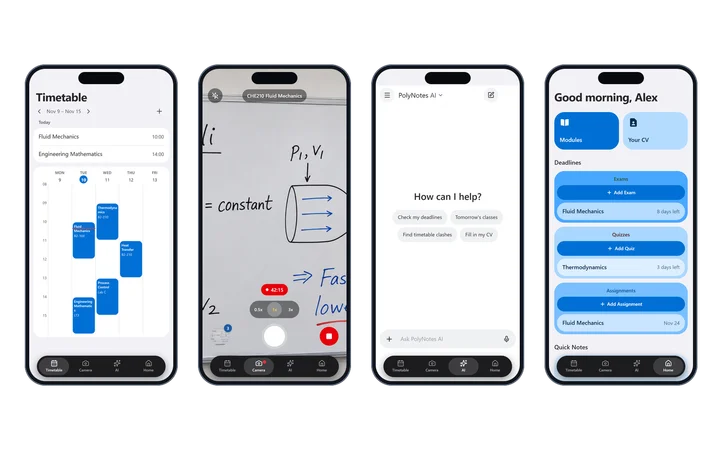
The four tabs
- Timetable: your week, and the classes left today. See The timetable on a phone.
- Camera: board photos and lecture recording.
- AI: the Concierge, or a tutor for any module.
- Home: deadlines, Quick Notes, your modules and your CV.
The round button in the corner opens your account and settings. On iPhone the tab bar is Apple's own, with Liquid Glass on iOS 26. On Android it's a dark bar floating at the bottom. A red dot on the Camera tab means a recording is running. The phone app works in portrait.
Getting around
- Some screens slide up as a sheet. Drag it down to close it.
- Others slide in from the right as a page. Swipe from the left edge to go back.
- On Android, the Back button closes whatever opened last. At the top level it leaves the app.
Take board photos
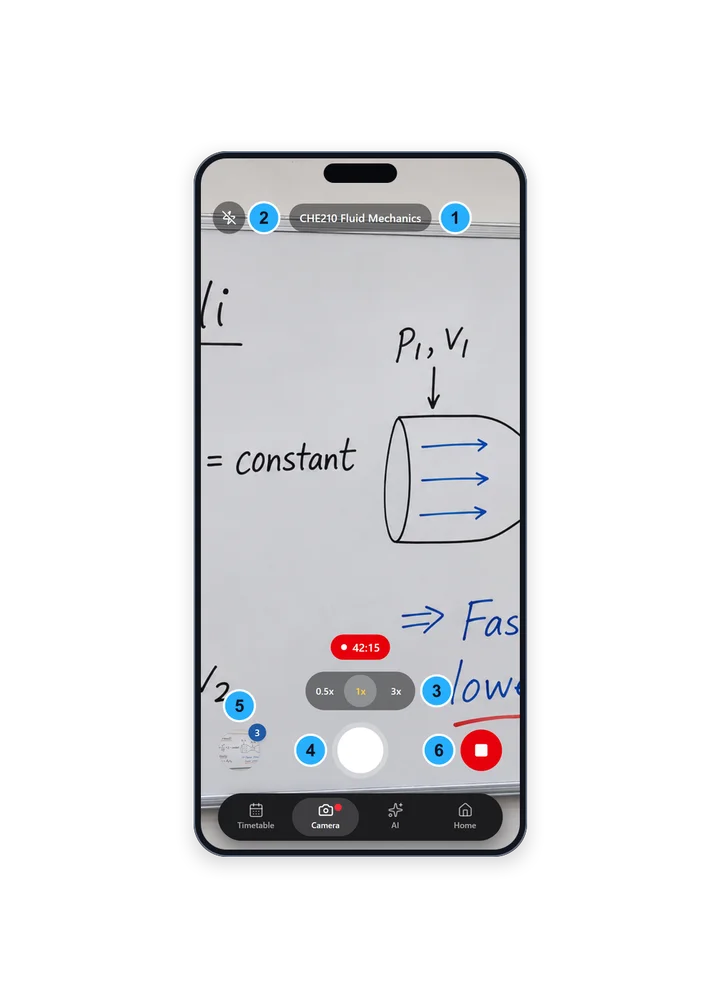
- The camera fills the screen, with the buttons floating over it.
- At the top, the class happening now, or “No class right now”.
- Tap the shutter to take a photo. Turn the flash on or off.
- Zoom with the 0.5×, 1× and 3× buttons where your phone has those lenses, or pinch.
- Tap the screen to focus there.
- The gallery button, bottom left, shows how many captures are waiting.
If the camera can't start it says so. If camera access is off, turn it on in your phone's Settings, under PolyNotes.
Record a lecture
- On the Camera tab, tap Record, bottom right. A timer starts.
- Carry on: take photos, switch tabs, or lock your phone. The recording keeps going.
- Tap Record again to stop.
- On Android, a notification says “Recording your lecture. Open PolyNotes to stop.” for as long as it runs. PolyNotes asks for notifications along with the microphone.
- On iPhone, the system's recording indicator shows while it runs.
- If a phone call comes in, the same recording carries on afterwards, with a gap for the call.
- Recordings are speech quality, about 14 MB an hour.
- On Android, PolyNotes keeps the phone awake for recordings of up to 6 hours.
- Dictation is off while you record, because the microphone is in use.
If the app is closed in the middle of a recording, it says so next time: “Your last recording stopped unexpectedly and couldn't be saved.”
How photos and recordings file themselves
You don't have to sort anything. PolyNotes uses your timetable.
- Which class: anything you capture from 10 minutes before a class until 15 minutes after belongs to that class. Between two classes, it picks the nearer one.
- Which module: the module linked to that class's course, or one with a matching name or code. If the course has no module yet, PolyNotes makes one.
- When: it files when the class ends, or as soon as you confirm.
- No class: captures taken outside any class wait in the gallery until you choose a module.
Every capture starts uploading the moment you take it, so nothing is lost if your phone dies after class. Uploads carry on in the background, even with the app closed, and retry if they fail.
Check the gallery
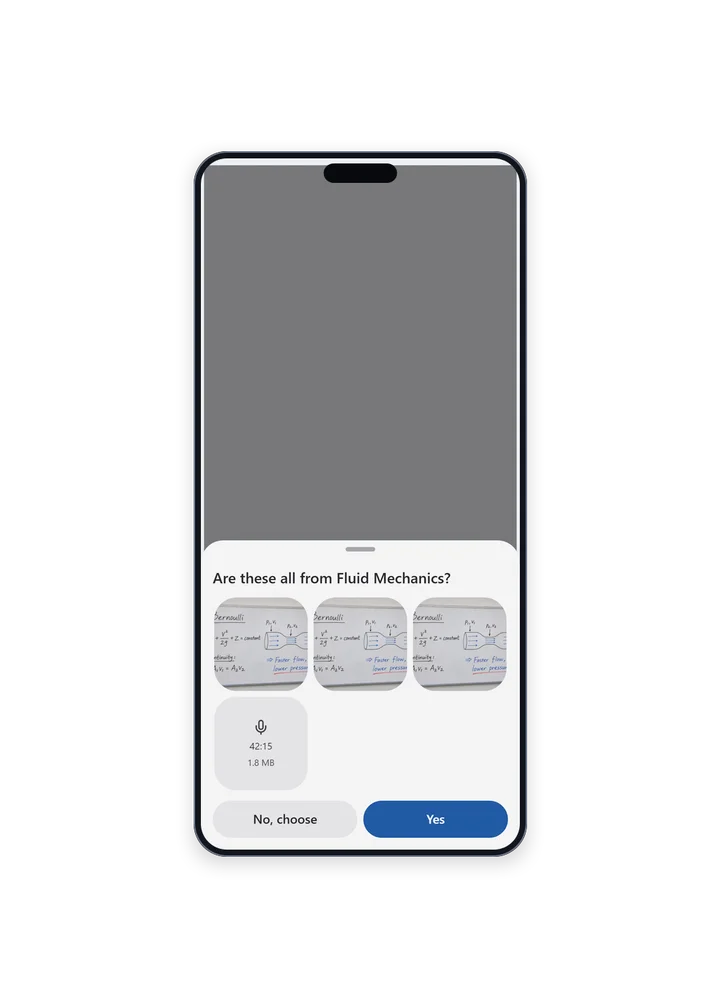
- Tap the gallery button on the Camera tab.
- It asks “Are these all from Fluid Mechanics?”, or whichever class it matched.
- Tap Yes to file them now. Or tap No, choose, select the captures, pick a module from the list or New module, and tap Confirm.
With nothing waiting, it says “Nothing to review. Photos file themselves when class ends.”
Where they end up
Once filed, each capture appears in that module's gallery on your iPad, Windows PC or Android tablet. Your phone doesn't need to be on. Move a capture to another module and it moves on every device. From there you can put a photo between slides. See Add a photo from the module.
Storage. Photos and recordings are kept in the cloud for 30 days, long enough for your other devices to download them. Each device keeps its own copy after that. You can upload up to 3 GB in any 30 days.
- If it's full: “Your storage is full, so some captures are waiting on this phone.” They upload as older captures expire.
- A recording over 95 MB, which is more than about 6½ hours, stays on the phone: “A recording is too long to upload, so it's staying on this phone.”
Open a lecture on your phone
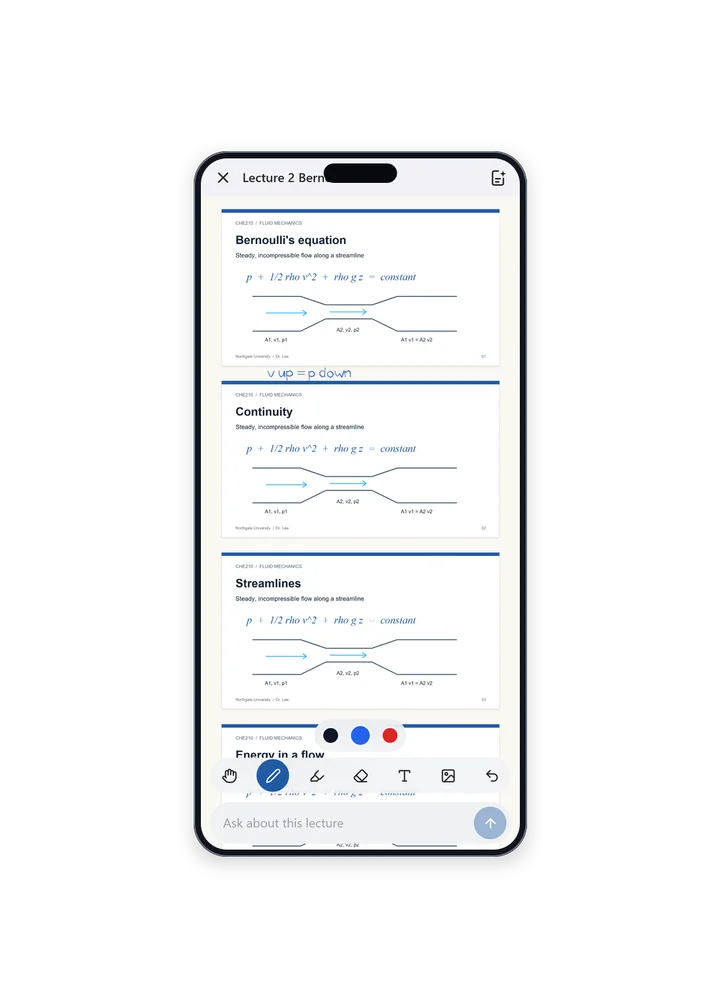
Open a module from the Modules box on Home, then tap a lecture. It's the same lecture as on your iPad, so anything you write is in the same notes.
- It opens zoomed so a slide fills the phone.
- The toolbar is one row: Move, Pen, Highlighter, Eraser and Text, three ink colours (black, blue and red), three highlight colours (yellow, green and pink), Add a picture and Undo.
- Learn opens summaries and flashcards Pro. See Learn.
- The message box at the bottom asks the AI about this lecture. The chat opens over the slides.
- A Word or PowerPoint file opens on your tablet or computer, but you can still ask the AI about it.
The AI tab
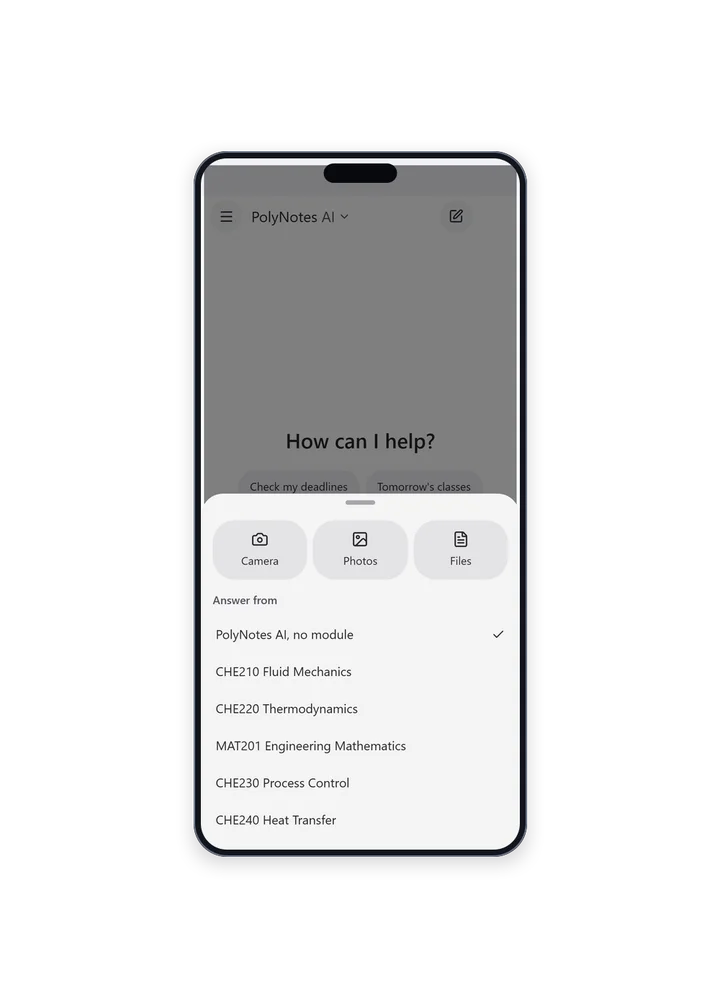
- With no context, it's the Concierge: your classes, deadlines, profile and CV. Suggestions: Check my deadlines, Tomorrow's classes, Find timetable clashes and Fill in my CV.
- Tap PolyNotes AI at the top and choose a module under Answer from to ask its tutor instead. Suggestions: Summarize this module, Quiz me and What's hardest here? Tap the × beside the module's name to go back to the Concierge.
- Past chats and New chat are at the top. Changes the Concierge makes show as Done or Failed.
- Tap + to send a photo, such as a screenshot of your timetable.
- The answer box says “PolyNotes AI can make mistakes.” Check anything important.
The tutor on a phone reads text your tablet or computer prepared, or slides Moodle put on the phone. If a module has neither, it says to sync Moodle or open the module once on another device. Its sources are written as text, as there's no slide viewer to jump to.
Home on a phone
A greeting, the Modules and Your CV boxes, your deadlines with countdowns, and Quick Notes. See Home and deadlines.
A tablet always gets the full app, so it has no Camera tab.
Something wrong or missing on this page? Email support@polynotes.me.