

PolyNotes user guide
Everything PolyNotes can do, and how to do it. Start with Get started, or jump to the chapter you need.
This guide covers PolyNotes 1.1. PolyNotes is on the App Store for iPad and the Microsoft Store for Windows. The iPhone and Android apps, and syncing between your devices, arrive with version 1.1. Anything new in 1.1 carries a New in 1.1 tag. If your app looks different, update it from your app store.
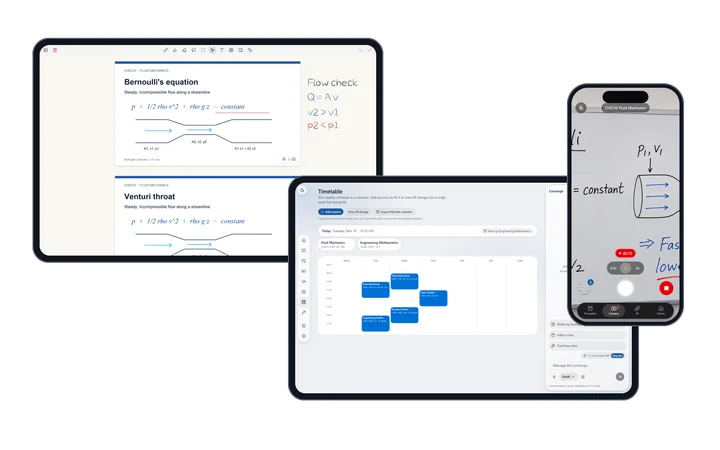
One app, two layouts
PolyNotes picks its layout from the kind of device, not the size of the window.
- The full app runs on iPad, Windows and Android tablets. A floating rail on the left takes you to Home, Modules, Notes and the rest. You get the slide viewer, the Notes whiteboard, the drawing tools and the Concierge panel.
- The phone app runs on iPhone and Android phones. It has four tabs at the bottom: Timetable, Camera, AI and Home. It's a lecture companion: take board photos, record the lecture, check your classes and ask the AI. New in 1.1
An iPad in a narrow Split View window keeps the full app.
Where each feature works
| Feature | iPad | Windows | Android tablet | iPhone, Android phone |
|---|---|---|---|---|
| Modules and Moodle sync | Yes | Yes | Yes | Yes |
| Canvas sync | Yes | Yes | Yes | No |
| Slide viewer and annotation | Yes | Yes | Yes | Simple version |
| Split view, lasso, shapes, ruler | Yes | Yes | Yes | No |
| Notes whiteboard | Yes | Yes | Yes | No |
| Voice notes on slides and notes | Yes | Yes | Yes | No |
| Transcribing voice notes | No | Yes | No | No |
| Dictation into chats | Yes | Yes | Yes | Yes |
| Concierge | Side panel | Side panel | Side panel | AI tab |
| Module tutor and Learn | Yes | Yes | Yes | Yes |
| Offline AI | No | Yes | No | No |
| Timetable, deadlines, courses, roadmap, CV | Yes | Yes | Yes | Yes |
| Camera tab and lecture recording | No | No | No | Yes |
| Sync between devices | Yes | Yes | Yes | Yes |
Start in five minutes
- Install and sign in. Use Apple, Google or Microsoft, or start without an account. See Get started.
- Bring your courses in. Connect Moodle or Canvas, or create a module by hand. See Moodle and Canvas.
- Open a lecture and write on it. See Lectures and slides and Pen and tools.
- Add your classes. Type them in, or send the AI a screenshot of your timetable. See Timetable.
- Ask the AI. It answers from your own slides. See Study with AI.
All chapters
Get startedInstall PolyNotes, sign in or start as a guest, and find your way around.Home and deadlinesDeadline countdowns, shortcuts and a quick note, all on one page.ModulesCreate modules, organise slides and materials, and find photos from class.Moodle and CanvasPull your courses, slides and deadlines in from your university's Moodle or Canvas.Lectures and slidesRead and write on slides, open two decks side by side, and add board photos between slides.Pen and toolsEvery writing tool: pen styles, highlighter, eraser, shapes, ruler, paper and undo.Lasso, boxes and picturesSelect and move your work, ask the AI about it, and add text boxes, tables, graphs and pictures.Notes whiteboardBlank boards that grow as you write, with PDFs, pictures, voice notes and a chat.AI and the ConciergeHow the AI works, what it costs, and how the Concierge runs your timetable, courses and CV for you.Study with AIThe module tutor, the Notes chat, Learn with summaries and flashcards, graphs and transcripts.TimetableYour weekly classes, one-week changes and replacement classes, on every device.Courses, Roadmap, ProfileList your degree's courses, track your grades, see your path to graduation and keep your profile.Services and CVKeep your university's portals in one list, and build a one-page CV from your own records.On your phoneTake board photos, record lectures with the screen locked, and let them file into the right module.Sync across devicesWhat moves between your iPad, iPhone, Windows PC and Android devices, and what stays put.Plans and AI actionsWhat each plan includes, how AI actions are counted, and how to buy, restore or cancel.Settings and accountEvery setting, your account page, signing out, deleting your account, and what stays private.Shortcuts and gesturesEvery keyboard shortcut and touch gesture in PolyNotes.TroubleshootingFixes for the most common problems, and how to reach support.
Something wrong or missing on this page? Email support@polynotes.me.