

User guide Get started
Get started
Install the app, choose how to sign in, and learn the layout. It takes a couple of minutes.
Install PolyNotes
| Device | Where to get it | Needs |
|---|---|---|
| iPad | App Store | iPadOS 14 or later |
| iPhone | The same App Store listing, from version 1.1 | iOS 14 or later |
| Windows | Microsoft Store | A window at least 960 × 640 |
| Android phone or tablet | Google Play, from version 1.1 |
It's one app on every store. A subscription belongs to your account, so it works on every device you sign in to.
Sign in
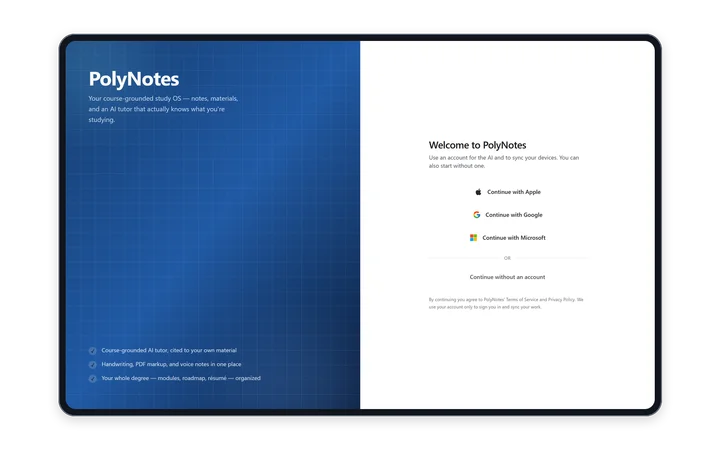
The sign-in page says “Welcome to PolyNotes”. Choose one of these:
- Sign in with Apple. On iPad and iPhone it uses Apple's own sign-in sheet.
- Sign in with Google. It opens in your browser, then returns to the app.
- Sign in with Microsoft. Some school or work Microsoft accounts block sign-in to other apps until the university's IT department allows it. If yours is blocked, use Apple or Google.
- Continue without an account. Starts guest mode, below.
Use the same sign-in everywhere. An Apple sign-in and a Google sign-in are two different PolyNotes accounts, even with the same email. If a device looks empty, check that you signed in the same way as on your other devices.
You stay signed in for 30 days at a time. The links to the Terms of Service and Privacy Policy sit under the buttons.
Start without an account New in 1.1
Choose Continue without an account to try PolyNotes first. Notes, slides, the timetable and the camera all work.
- The AI, syncing between devices and buying a plan need an account. Tapping them takes you to sign-in.
- Your work stays on this device.
- To sign in later, open the Account page and tap Sign In. Everything you made as a guest stays.
The first run
After you sign in, or start as a guest, PolyNotes shows three short pages once.
- Before you continue. Tick “I agree to PolyNotes' Terms of Service and Privacy Policy”. This one is required. A second box, “Send me occasional product updates and study tips”, is up to you.
- Bring your courses in. Connect Moodle to pull your modules, materials and deadlines in, or skip it for now. See Moodle and Canvas.
- Choose a plan. Free is a choice too. Until you choose, the plan sheet opens each time you start the app. See Plans and AI actions.
Back and Skip work on every page.
Find your way around the full app
This is the layout on iPad, Windows and Android tablets.
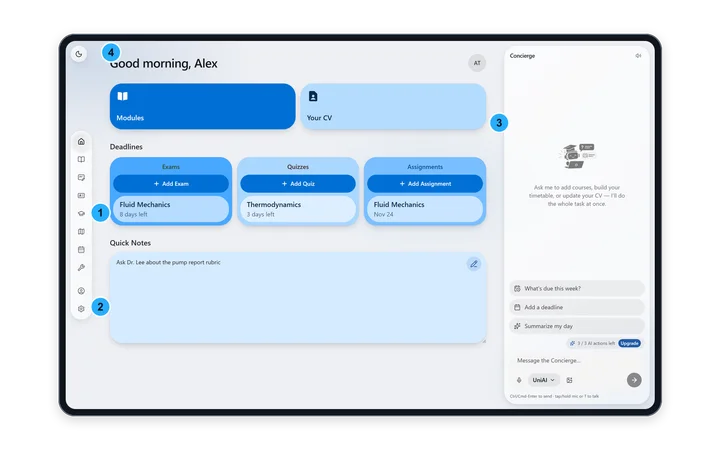
The side rail
- A floating rail on the left edge holds the tabs. The app opens on Modules.
- Home, Modules and Notes are always there.
- Profile, Courses, Roadmap, Timetable and Services are optional. Turn them on in Settings → Sidebar items. You can open any of them from Settings while they're hidden.
- Account and Settings sit at the bottom of the rail.
The Concierge panel
Home, Timetable, Courses, Roadmap, Profile, Services and Settings show the Concierge, your AI assistant, in a panel on the right. Modules and Notes use the whole screen instead. See PolyNotes AI and the Concierge.
Modules stays where you left it
Switch to another tab and come back: the same module, slide, split windows, chat, zoom and scroll position are waiting.
Find your way around the phone app New in 1.1
On iPhone and Android phones, four tabs sit at the bottom: Timetable, Camera, AI and Home. The round button in the corner opens your account. See PolyNotes on your phone.
Light and dark
- Dark is the default. Tap the light/dark button at the top left of any page to switch iPad · Windows · Android tablet.
- The Notes whiteboard has its own button, so the board can be light while the app is dark.
- On phones, switch in Settings → Appearance.
- If your device has Reduce Motion turned on, PolyNotes drops its animations.
Several accounts on one device
- Each account keeps its own data on the device. A new sign-in starts empty, and signing back in brings your things back.
- Signing out never erases anything. Your handwriting lives on the device, so only Delete Account removes it.
- A device holding another account's data doesn't sync. Settings → Cloud & Sync says so and offers Use this account here. That clears the other account's data from this device. It isn't lost: it comes back when that account signs in again.
Something wrong or missing on this page? Email support@polynotes.me.