

User guide Home and deadlines
Home, deadlines and Quick Notes
Home shows what's due soon, shortcuts to your modules and CV, and a note for anything you need to remember.
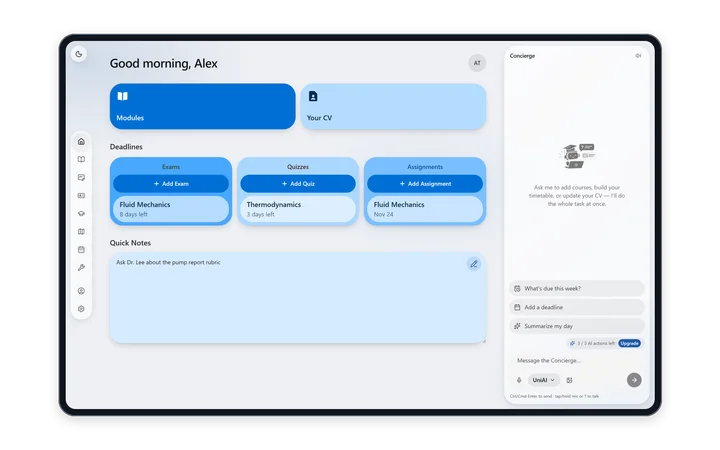
What's on Home
| Part | iPad, Windows, Android tablet | Phones |
|---|---|---|
| Greeting | Good morning, afternoon or evening | The same |
| Shortcuts | Modules and Your CV | Modules and Your CV |
| Deadlines | Three trackers: Exam, Quiz and Assignment | A short list with countdowns |
| Quick Notes | Yes | Yes |
| Concierge | Panel on the right | The AI tab |
Today's classes
Today's classes are on the Timetable, in the Today strip above the week.
Deadlines
Deadlines come in three kinds: Exam, Quiz and Assignment. Each one has a title, a due date and time, an optional course, and room for notes. The soonest is at the top.
Add a deadline iPad · Windows · Android tablet
- Tap the add button on the Exam, Quiz or Assignment tracker.
- Answer one question at a time: What's it called?, When's it due? and Which course? “No course” is fine.
- Save. Back, the × and Esc all work on the way.
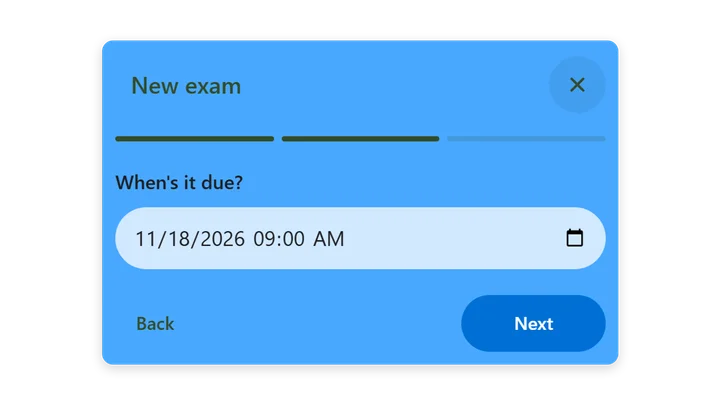
Read the countdown
- Each row shows the due date. From 12 days before, it counts down instead: “5 days left”, “1 day left”, then “Today” and “Overdue”.
- Open a deadline to see the full countdown, for example “Due in 2 weeks”, “Due in 3 days”, “Due tomorrow”, “Due in 5h” or “Due soon”, and after the date “2 days overdue”.
Write notes on a deadline
Tap a deadline to add notes, like what to revise or who's in your group. On phones the sheet also has Save and Delete.
Deadlines on a phone New in 1.1
Rows count down the same way. Long Moodle course names are shortened, so “CHE210 Fluid Mechanics 2026/09 Lee …” reads “Fluid Mechanics”.
Deadlines that fill themselves in
Assignments and quizzes arrive with their due dates when you sync Moodle or Canvas. Exam and event dates come in with Import Moodle calendar on the Timetable. A later sync updates them instead of adding copies. See Moodle and Canvas.
Quick Notes
- One free-text note on Home. Tap “Tap to jot a quick note…” to write.
- When you ask the Concierge to “remind me” or “note that”, it adds to this note.
- It syncs to your other signed-in devices.
Your CV
The Your CV box opens your one-page CV. See Services and your CV.
Something wrong or missing on this page? Email support@polynotes.me.