

User guide Timetable
Timetable
Your timetable drives the rest of PolyNotes: the Today strip, the class name on the phone's camera, where your photos file, and what the Concierge knows about your week.
Three kinds of class
- A weekly class repeats every week, on the same day and time.
- A one-week change replaces, cancels or adds a session in one particular week. The weekly class is left as it was.
- A replacement class happens on one date only.
Every week you look at shows what's really on that week, with all three in the right place.
The weekly timetable iPad · Windows · Android tablet
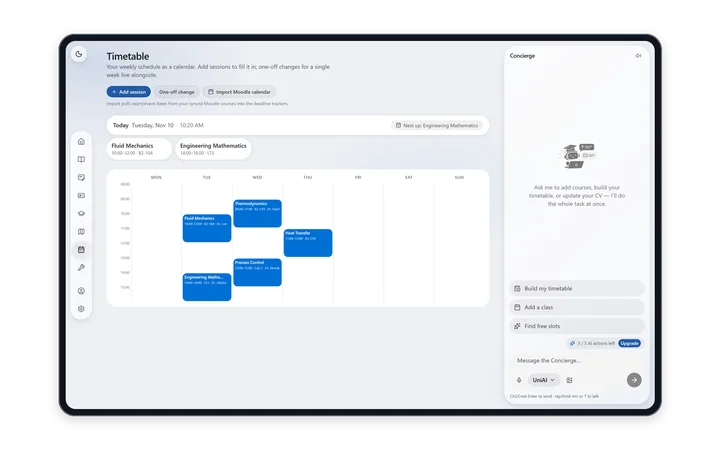
Days run across and hours run down, from 08:00 to 18:00, stretching to fit your earliest and latest class. A full teaching day fits without scrolling.
The Today strip above the week lists today's classes and what's next. It includes one-week changes and replacement classes, so it shows what's really happening today.
Add a class
- Tap Add session.
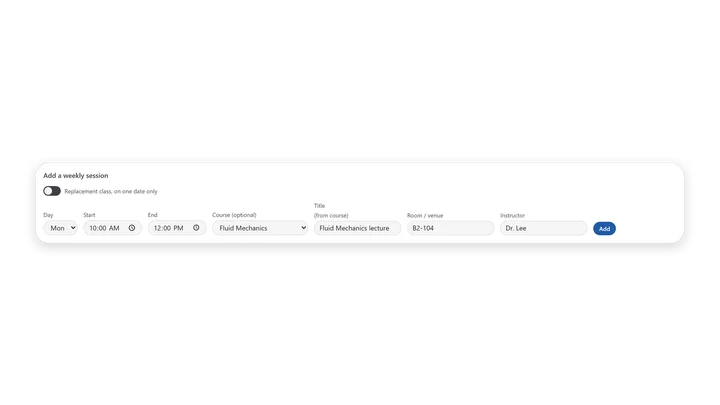
- Choose the Day, Start and End, and type a Title.
- Add a Course, Room / venue and Instructor if you like.
- For a one-off class, turn on Replacement class and choose a Date instead of a day.
- Save.
Change one week
For a cancelled lecture, a moved tutorial or an extra session:
- Open One-off change for a week.
- Under Week of, pick any date in that week.
- Under Change, choose Replace a session, Cancel a session or Add an extra session.
- Choose Which session, enter the new details if there are any, and tap Save change.
Saved one-off changes lists them all. Each has Delete change.
See or edit a class
Tap a class for its details. Press and hold to edit it.
Import your Moodle calendar
Import Moodle calendar adds exam and event dates from your synced Moodle courses to your deadlines on Home. It only runs when you tap it, because a Moodle calendar doesn't always match what really happens.
The timetable on a phone New in 1.1
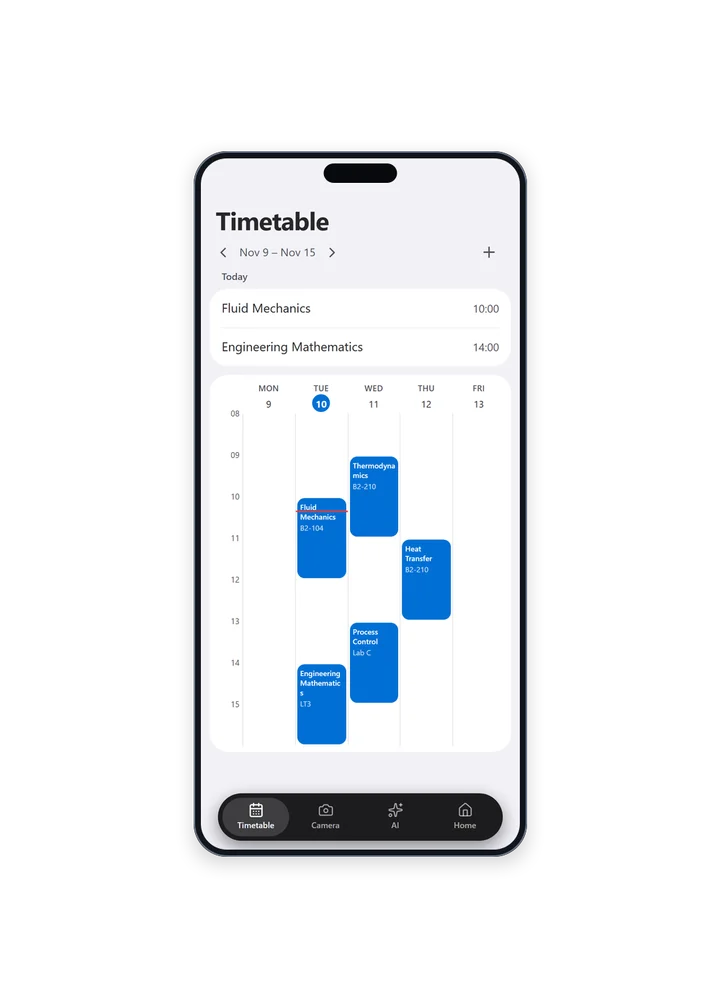
- The same week grid. Swipe to change week, use the arrows, or tap Today to come back.
- The week's dates sit at the top, today is highlighted, and a red line marks the time now.
- Below the grid you'll find today's remaining classes, or “No more classes today”.
- A small mark shows a class that's changed this week.
- Tap + for Add Class. Tap a class for details, or press and hold to edit it.
- With no classes yet, you can Ask PolyNotes AI to build it from a screenshot, or Add Class yourself.
Class details and editing
- Details show the name, time, room and lecturer, with Edit Class and Delete Class. A class changed this week says “Changed for this week”.
- Edit has Name, Replacement class, Date or Day, Starts, Ends, Room and Lecturer. Room and Lecturer are optional.
- A class has to end after it starts.
- Delete adapts to what you're removing: Delete Class, Delete Replacement Class or Remove This Week's Change.
Let the AI build it
Send the Concierge a screenshot of your official timetable and it adds every class, with times, rooms and lecturers. Or just tell it: “Add CHE210 on Monday at 10am.” See The Concierge.
Your timetable syncs to your other signed-in devices. See Sync across your devices.
Something wrong or missing on this page? Email support@polynotes.me.